Review and Send Order
Ticket Screen
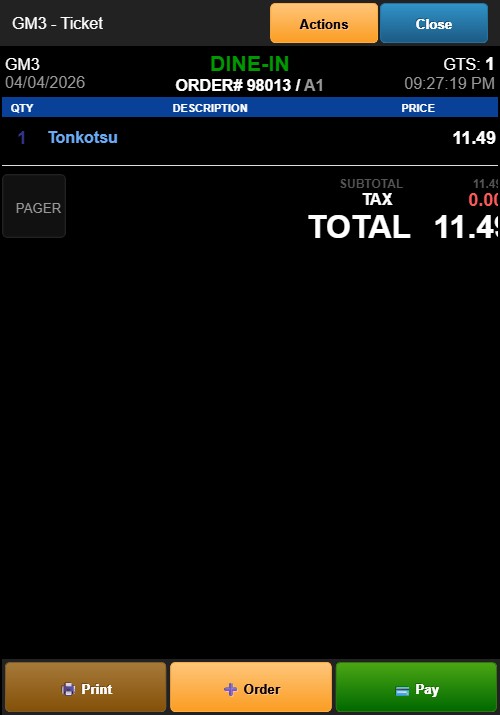
The ticket screen displays the complete order summary.
Header
- Register identifier (e.g., GM3)
- Order type: DINE-IN
- Order number and table assignment
- Guest count (GTS)
- Timestamp
Order Items
A table with three columns: - QTY — Item quantity - DESCRIPTION — Item name and modifiers - PRICE — Item price
Below each item, the CASH PRICE is displayed if it differs from the regular price.
Totals Section
- SUBTOTAL — Sum of all item prices
- Tax (e.g., T1 8.750%) — Calculated tax amount
- TIP — Tip amount if applicable
- TOTAL — Final total including tax and tip
Below the total: - PAY WITH CASH — The cash payment amount (may differ from credit total) - PAY WITH CREDIT — The credit card payment amount
PAGER Button
A PAGER button is located on the left side, used for pager functionality.
Sending the Order
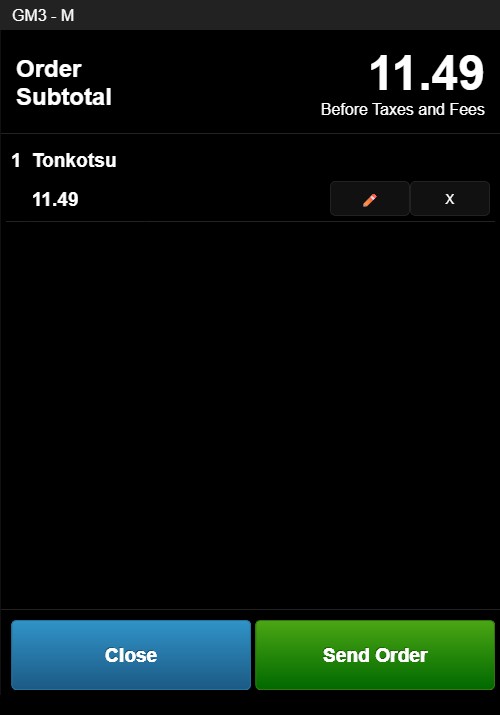
When new items have been added but not yet sent to the kitchen, a green Send button with an arrow icon appears at the bottom of the screen. Tap Send to submit the order to the kitchen display system.
After sending, the Send button is replaced by the standard bottom buttons.
Bottom Buttons
- Print (red) — Prints the ticket
- + Order (blue) — Returns to the menu to add more items
- Pay (green) — Opens the Payment Options screen
Actions Button
The orange Actions button in the header provides access to additional ticket operations.