Add Items
Adding an Item to the Order
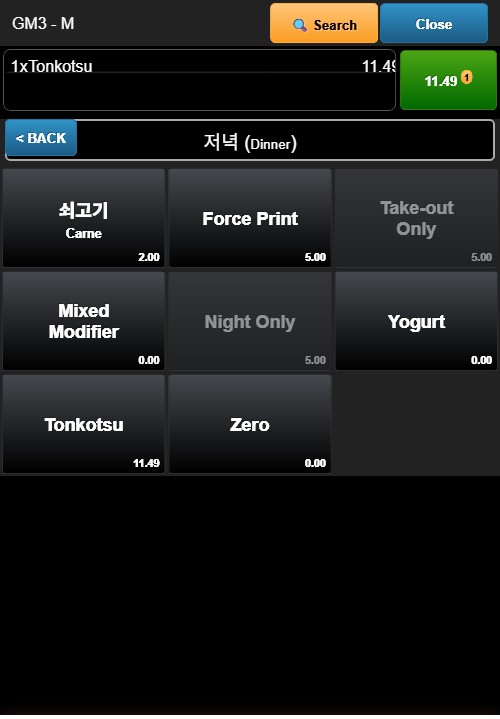
Tap a menu item button on the right side of the screen. The item is added to the order list on the left side, displaying the item name and price.
Modifier Selection
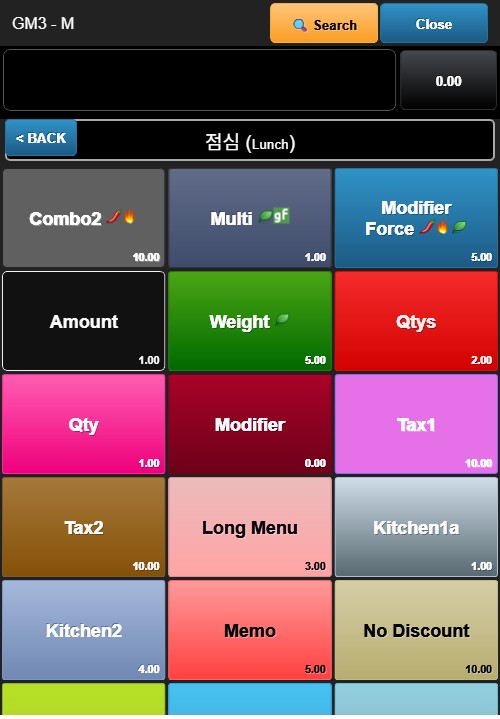
Some items open a modifier selection screen after being tapped. This screen displays:
- Modifier Category Header: Instructions such as "CHOOSE 3 OF THE FOLLOWING"
- Modifier Buttons: Available options (e.g., Ham, Onion, Grilled Chicken)
- Selected Modifiers: Highlighted buttons indicate selected options
Tap modifier buttons to select or deselect options. Once the required modifiers are selected, the system returns to the order screen.
Order List Display
Each item in the order list shows:
- Quantity (QTY column)
- Item Description (DESCRIPTION column)
- Price (PRICE column)
- CASH PRICE — Displayed below items that have a separate cash price
Modifiers appear as separate lines under their parent item, typically showing a price of $0.00.
Editing Items
Tap an item in the order list to select it. An edit icon (pencil) may appear, allowing you to modify the item's quantity or modifiers.
Removing Items
To remove an item, select it and use the delete option if available, or set its quantity to zero.