Payment Complete
Thank You Screen
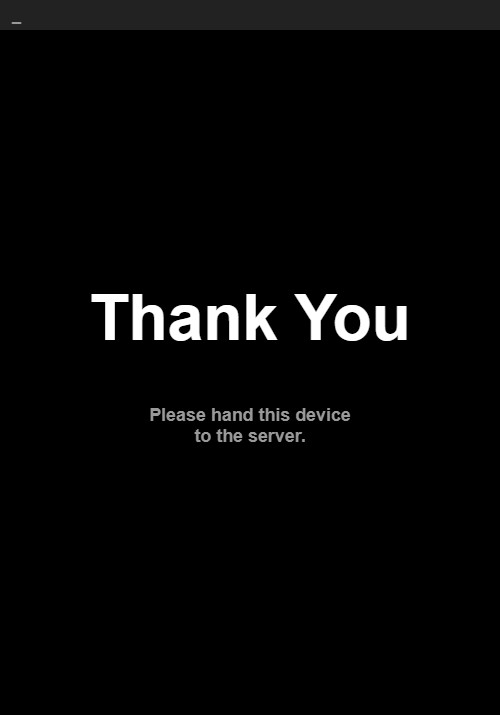
After the signature is submitted, a full-screen Thank You message appears on a black background:
- "Thank You" in large white text
- "Please hand this device to the server." in smaller gray text
This screen is intended for the customer to see. Tapping the top-left corner of the screen advances to the Payment Approved screen.
Payment Approved Screen
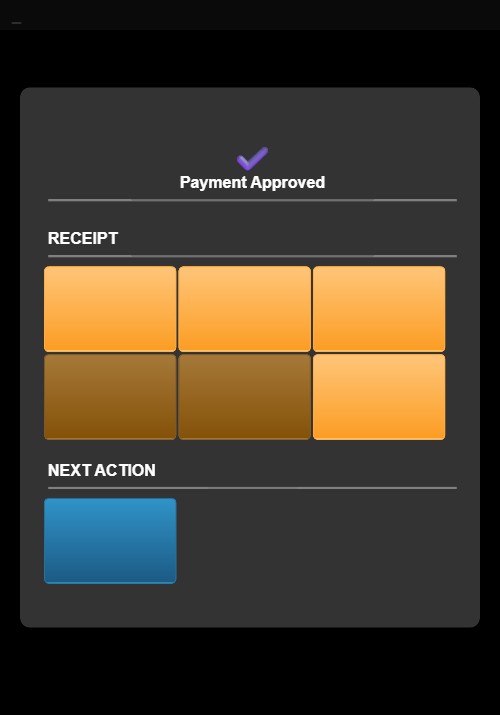
The Payment Approved screen displays:
- A checkmark icon and "Payment Approved" text at the top
RECEIPT Section
Six receipt buttons are arranged in two rows:
| Column 1 | Column 2 | Column 3 | |
|---|---|---|---|
| Row 1 | Customer Copy LOCAL | Signature Copy LOCAL | Email RECEIPT |
| Row 2 | Customer Copy REMOTE | Signature Copy REMOTE | Text RECEIPT |
- Customer Copy LOCAL — Prints a customer receipt to the local printer
- Signature Copy LOCAL — Prints a signature copy to the local printer
- Email RECEIPT — Sends the receipt via email
- Customer Copy REMOTE — Prints a customer receipt to a remote printer
- Signature Copy REMOTE — Prints a signature copy to a remote printer
- Text RECEIPT — Sends the receipt via text message
Customer Tip & Sign (Post-Tip Only)
When a Post-Tip Credit Card payment is processed, an additional Customer Tip & Sign button appears above the receipt section. Tapping this button opens a combined Tip Selection and Signature screen where the customer can select a tip percentage and sign on the same screen.
NEXT ACTION Section
- Close (blue button) — Closes the payment screen and returns to the ticket list
After Payment
Once the payment is closed, the ticket moves from Open Tickets to Closed Tickets. If a balance remains on the ticket (partial payment), it stays in Open Tickets with the remaining balance displayed.