Getting Started
Accessing CloudPOS Mobile
Open CloudPOS App on a mobile Device
Login Screen
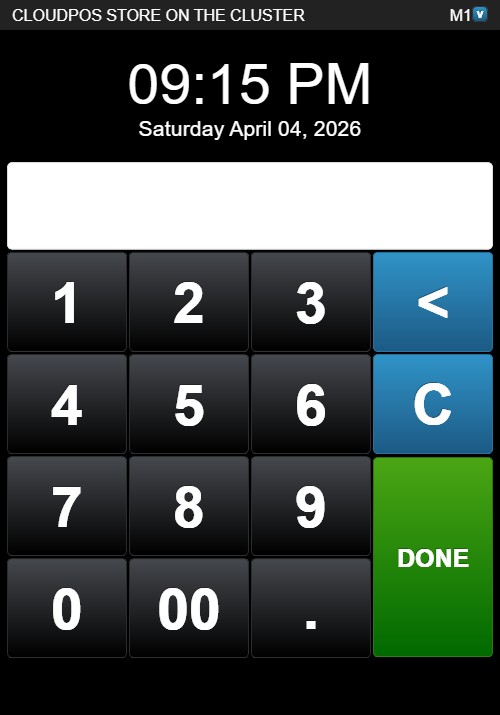
The login screen displays the following elements:
- Register Indicator: "M1" identifying the register
- Digital Clock: Shows the current time and date
- PIN Entry Field: Displays asterisks (****) as digits are entered
- Numeric Keypad: Buttons for digits 1–9, 0, and 00
- Decimal Point (.): For entering decimal values
- Backspace (<): Blue button — removes the last entered digit
- Clear (C): Blue button — clears all entered digits
- DONE: Green button — submits the PIN to log in
Logging In
- Enter your employee PIN using the numeric keypad. Each digit appears as an asterisk (*) in the PIN field.
- If you enter a wrong digit, tap < to delete the last digit, or tap C to clear the entire entry.
- Tap the green DONE button to submit.
- On successful login, the system loads the Home Screen.
Logging Out
From the Home Screen, tap the blue Logout button in the top-right corner to return to the login screen.