Quick Sale
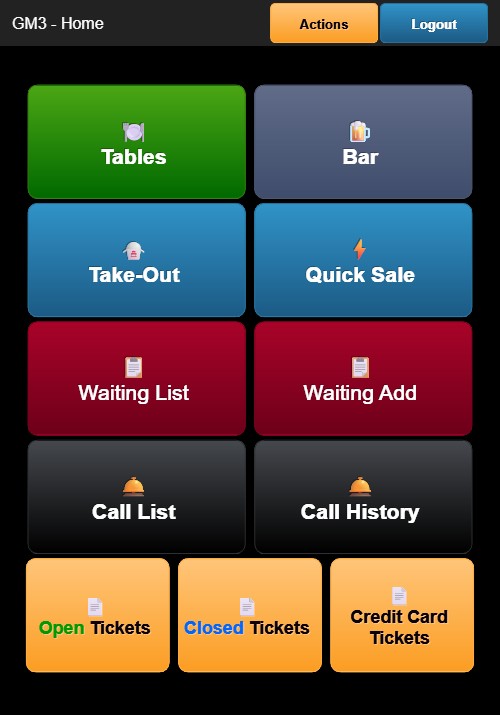
Quick Sale is used for counter sales that do not require a table assignment. From the Home Screen, tap the blue Quick Sale button (lightning icon).
Quick Sale Screen
The Quick Sale screen opens a ticket with the order type displayed as QUICK SALE in the header. The layout is the same as the table ordering screen:
- Left Side: Current order items with quantities and prices
- Right Side: Menu category and item buttons
The header displays the register identifier, QUICK SALE label, order number, and timestamp. No table assignment or guest count is shown.
Ordering
- Tap a menu category on the right side to view its items.
- Tap an item to add it to the order. If the item has modifiers, the modifier selection screen appears.
- Added items appear in the order list on the left with quantity, description, and price.
- The SUBTOTAL, tax, and TOTAL update automatically.
Completing a Quick Sale
- Print (red button) — Prints the ticket
- + Order (blue button) — Returns to the menu to add more items
- Pay (green button) — Opens the Payment Options screen
The payment process follows the same flow as table orders: select payment method, tip, signature, and receipt options.