Browse Menu
Menu Screen Layout
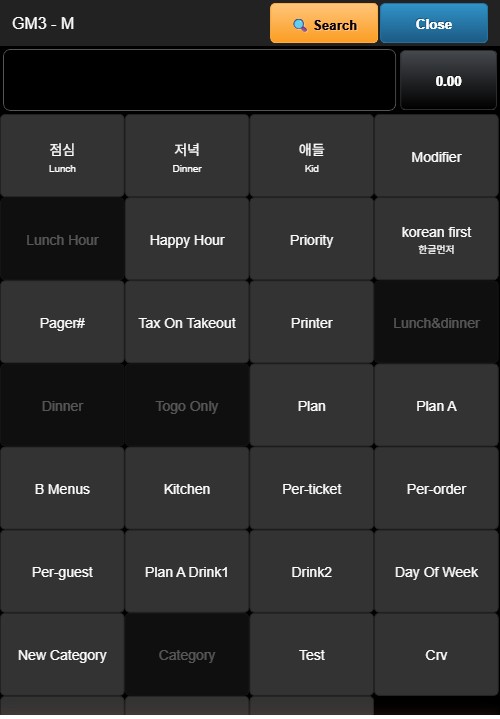
After opening a ticket, the menu screen is displayed. It is divided into two areas:
- Left Side: Displays the current order with item names, quantities, and prices
- Right Side: Displays menu category buttons
The header shows the register identifier, order type (e.g., DINE-IN), order number, table assignment, guest count (GTS), and timestamp.
Menu Categories
Menu categories appear as colored buttons on the right side. Available categories depend on the restaurant's configuration and may include items.
Tap a category button to display the items within that category.
Menu Items
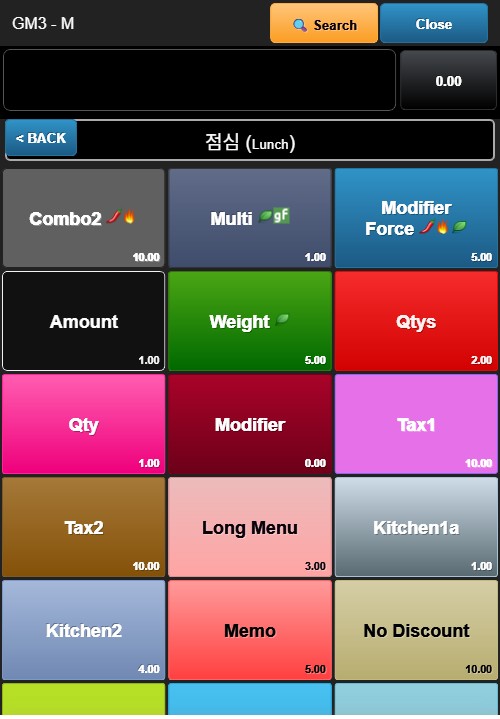
After selecting a category, item buttons appear on the right side. Each item button shows the item name. Tap an item to add it to the current order.
Bottom Buttons
Three buttons appear at the bottom of the screen:
- Print (red) — Prints the current ticket
- + Order (blue) — Opens the menu to add more items to the order
- Pay (green) — Proceeds to payment options