Tip Selection
The Tip Selection screen appears after choosing a Pre-Tip payment option, or after tapping Customer Tip & Sign on a Post-Tip payment.
Credit Card Tip Selection
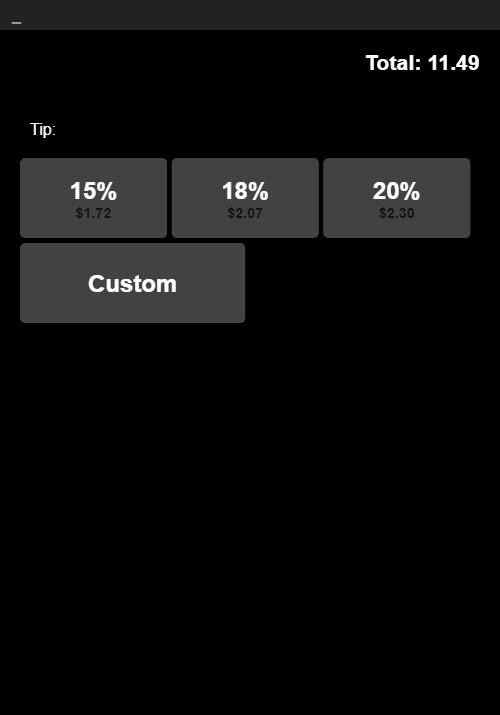
When paying by credit card, the screen displays:
- Total amount in the top-right corner
- Tip: label
- Three percentage-based tip buttons:
- 15% — Shows the calculated dollar amount (e.g., $4.35)
- 18% — Shows the calculated dollar amount (e.g., $5.23)
- 20% — Shows the calculated dollar amount (e.g., $5.81)
- Custom button — Allows entering a custom tip amount
Tapping a percentage button highlights it in orange. The Total updates to reflect the ticket total plus the selected tip. The breakdown is shown as "Ticket Total: X.XX, Tip: X.XX".
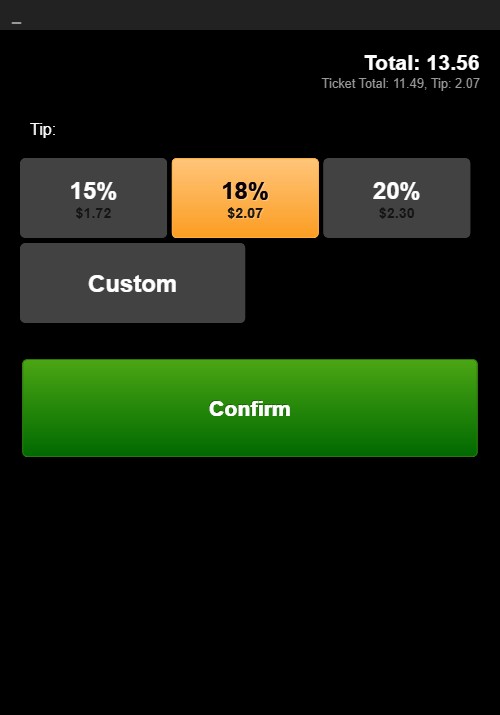
A green Confirm button appears after a tip is selected. Tap Confirm to proceed.
For Pre-Tip Credit Card: the next screen is the Signature screen. For Post-Tip Credit Card: the tip selection and signature appear on the same screen (see below).
Customer Pay Tip Selection
When paying with Customer Pay, the screen displays:
- Total amount in the top-right corner
- Tip: label
- Three fixed dollar tip buttons:
- $1
- $2
- $3
- Custom button — Allows entering a custom tip amount
Tapping a dollar button highlights it in orange. The Total updates to include the tip. The breakdown shows "Ticket Total: X.XX, Tip: X.XX".
A green Confirm button appears after a tip is selected. Tap Confirm to proceed to the Signature screen.
Post-Tip Combined Screen
For Post-Tip Credit Card payments, after tapping Customer Tip & Sign on the Payment Approved screen, a combined screen appears showing:
- Tip percentage buttons (15%, 18%, 20%, Custom) at the top
- Signature pad below the tip buttons
- CLEAR (blue) and OK (green) buttons at the bottom
The customer can select a tip and sign on the same screen, then tap OK to complete.